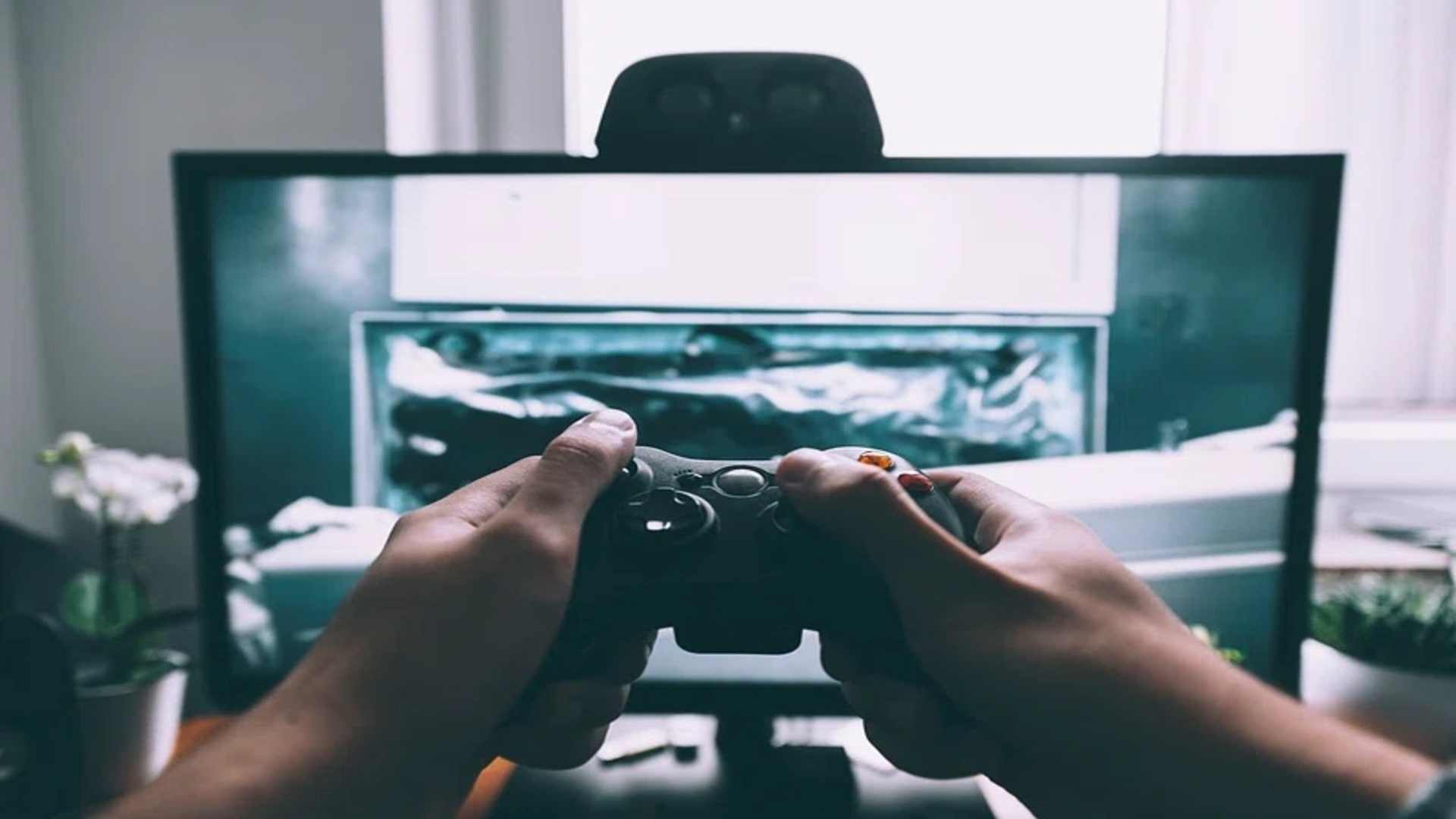
PlayStation 5 players frequently rely on the lightbar on their DualSense controller to gauge hardware status, battery health, and in-game indicators. When the controller displays solid or flashing red and black themes—or specific red light behaviors—it often signals specific operational modes or hardware connectivity issues. Understanding what these light indicators mean helps gamers troubleshoot problems quickly and get back to seamless play.
Understanding Red Light Indicators on the PS5 Controller
A red light on the DualSense controller can represent several different scenarios depending on how the device is connected. When connected to external devices like a PC or mobile platform, a faint red illumination often serves as the default color profile. However, during active PS5 console play, a persistent red light might indicate a critical low battery alert or an in-game status event triggered by specific software.
In certain video games, developers utilize the lightbar dynamically to mirror actions happening on screen. For instance, police chases, low health states, or environmental hazard warnings can cause the controller to flash red or alternate between red and blue. Differentiating between software-driven visual effects and actual hardware error warnings prevents unnecessary troubleshooting steps.
Why Your Controller May Display Red or Dark Screens
If your PS5 controller lightbar stays solid red or turns off completely to black during gameplay, a sync loss or power delivery problem may be occurring. A completely dark lightbar usually means the battery is drained, the console is powered down, or the controller has entered deep sleep mode. Low voltage output from damaged cables can also prevent the lightbar from lighting up or charging correctly.
Firmware glitches can occasionally lock the lightbar into a single color state despite changes in console status. This issue often arises after sudden system disconnects, incomplete software updates, or corrupted Bluetooth paired profiles. Inspecting both the controller settings and physical connections helps identify the exact root cause.
Troubleshooting and Fixing Red Light Issues
The fastest way to resolve an unresponsive red light or connection error is to perform a hard hardware reset. Locate the small reset button pinhole on the back of the DualSense controller next to the Sony logo. Insert a small paperclip into the hole, press down firmly for five seconds, and then re-pair the controller using an official USB-C cable.
If the red light stems from power issues, ensure the PS5 console USB ports are supplying adequate power in rest mode. You can adjust these power settings by navigating to System Settings, selecting Power Saving, and enabling power to USB ports. Testing a different high-speed USB cable or official charging dock can also resolve charging errors efficiently.
When to Consider Hardware Repairs or Replacements
When software resets and cable changes fail to clear an error, internal hardware components may be faulty. Internal lithium-ion battery degradation over time can cause improper voltage readings and erratic lightbar behavior. Additionally, heavy wear on internal ribbon cables or analog assemblies may require professional repair or warranty replacement.
Checking the back of your controller for specific revision IDs can provide insight into hardware build generation. Newer model revisions often feature updated internal springs and improved component reliability. Contacting official PlayStation support remains the best course of action if your device remains under warranty coverage.